> For the complete documentation index, see [llms.txt](https://docs.codewords.ai/llms.txt). Markdown versions of documentation pages are available by appending `.md` to page URLs; this page is available as [Markdown](https://docs.codewords.ai/~/revisions/9n8QZWQLRumtIxQk1QAV/core-concepts/triggers.md).
# Triggers
Triggers in CodeWords start workflows automatically when events occur or on a set schedule. Build event-driven or time-based automations across 2,700+ apps.
### **Overview**
Triggers let your workflows start automatically when something happens—like receiving an email, a Slack message, or an update in a connected app.\
Scheduling, on the other hand, runs workflows at fixed intervals—hourly, daily, or at custom times.
Think of them as two core automation types:
* **Event-driven triggers:** React instantly to external events.
* **Scheduled triggers:** Run tasks at predefined times.
Together, they make CodeWords workflows autonomous and reliable.
### Event-driven triggers
Event-driven triggers allow your automations to respond immediately when key events occur—such as a message being sent, a form submitted, or a new record created.
#### **Native CodeWords Triggers**
These work seamlessly out of the box with minimal setup:
* **Slack:** New messages, reactions, or when a user joins a channel
* **WhatsApp:** Incoming messages sent to the CodeWords WhatsApp number, group messages where CodeWords is a member, and message reactions.
To activate, simply connect your accounts from the [Integrations](https://codewords.agemo.ai/account/integrations/) page. Once connected, these triggers are instantly available.
#### **Pipedream Platform Triggers**
CodeWords integrates with the Pipedream platform, giving you access to **over 2,700 apps and services** for event-based automation.\
Popular options include:
* **Gmail:** New emails, label changes, or draft creation
* **Google Calendar:** Event creation, updates, or deletions
* **GitHub:** Code pushes, new issues, pull requests
* **Notion:** Page or database updates
* **Discord, HubSpot, Stripe, Airtable**, and many more
If your app supports event-based actions, CodeWords can likely trigger from it.
#### **Custom Webhooks**
If your system isn’t natively supported, CodeWords provides custom webhook URLs to handle external events.\
These URLs can be called from any platform capable of sending HTTP POST requests with JSON data.
To create one, simply tell Cody which external system you want to connect. Cody will automatically generate and configure the webhook endpoint for you.
To learn more about Webhooks in CodeWords, visit the [Webhooks](https://docs.codewords.ai/fundamentals/webhooks) documentation page.
### **Setting Up Event Triggers**
Follow these steps to enable event-based automations:
1. **Connect accounts** — Go to the [Integrations](https://codewords.agemo.ai/account/integrations) page and link the app you want to use as a trigger source.
2. **Define the event** — Tell Cody to trigger your workflow based on a specific event (e.g., “New message in Slack”).
3. **Confirm setup** — Once configured, your event trigger will appear on the [Triggers](https://codewords.agemo.ai/workflows/triggers) page, ready for use.
Event-driven triggers allow workflows to run instantly when external systems send data.
### **Scheduled Triggers**
Scheduled triggers let you run workflows automatically at set intervals—ideal for reports, reminders, or maintenance tasks.
#### **Setting Up a Schedule**
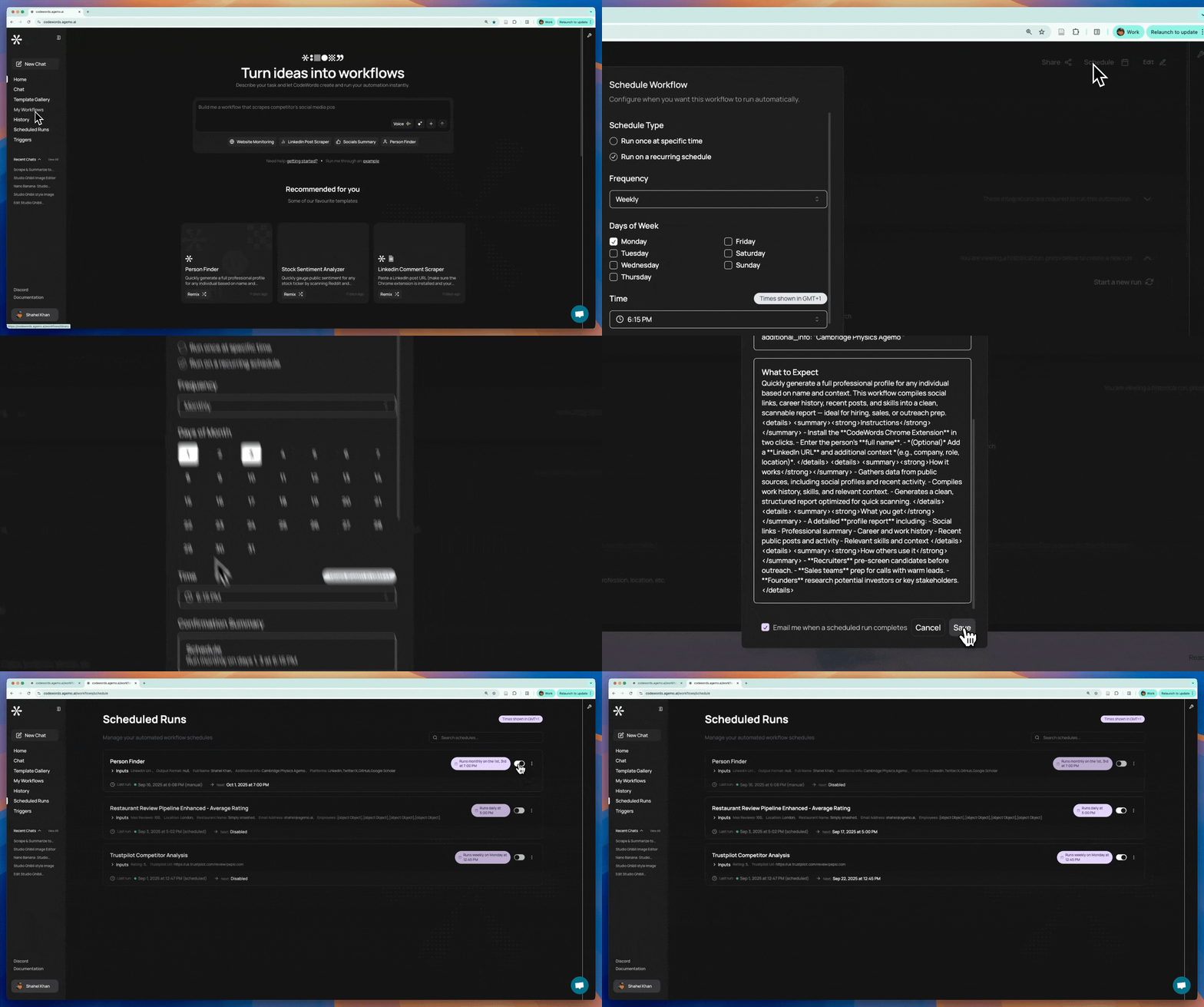
1. **Test your workflow** : From the [My Workflows](https://codewords.agemo.ai/workflows/library) page, make sure your workflow runs successfully.
2. **Create a schedule** : Select the Schedule option and choose when the workflow should run.
3. **Select frequency** : Set it to run hourly, daily, weekly, or at a custom interval.
4. **Save your schedule** : The workflow will now execute automatically based on your chosen timing.
5. **Manage schedules** : Visit the [Schedules](https://codewords.agemo.ai/workflows/schedule) page to view or modify all active scheduled workflows.
Setting up a scheduled workfow on CodeWords
### **When to Use Each**
| Use Case | Best Option |
| ------------------------------------------ | ---------------------- |
| Reacting instantly to new data or messages | Event-driven trigger |
| Running recurring reports or reminders | Scheduled trigger |
| Connecting unsupported systems | Custom webhook trigger |
Event-driven triggers are best for responsive workflows. Scheduled triggers are ideal for predictable, time-based automation.
### FAQ
What if my app isn’t supported?
You can use custom webhooks. Cody will create a webhook URL you can connect to any system that sends HTTP POST requests with JSON data.
What are Pipedream triggers?
Through Pipedream, you can use over 2,700+ event sources, including Gmail, Notion, GitHub, Stripe, and HubSpot. These expand your automation options far beyond native integrations.
Can I see or edit my active triggers?
Yes, visit the Triggers page in CodeWords to manage, pause, or delete any active event-based automation.
Do triggers run even when I’m offline?
Yes. Once set up, triggers and schedules run automatically in the background — no manual action needed.
### **Summary**
Triggers make your automations proactive and reliable.
* **Event-driven triggers** react to real-time events.
* **Scheduled triggers** run at specific times.
* **Custom webhooks** extend integration to any system.\
Whether you’re managing messages, syncing data, or scheduling reports, CodeWords handles it automatically—no manual input or coding required.
---
# Agent Instructions
This documentation is published with GitBook. GitBook is the documentation platform designed so that both humans and AI agents can read, navigate, and reason over technical content effectively. Learn more at gitbook.com.
## Querying This Documentation
If you need additional information that is not directly available in this page, you can query the documentation dynamically by asking a question.
Perform an HTTP GET request on the current page URL with the `ask` query parameter, and the optional `goal` query parameter:
```
GET https://docs.codewords.ai/~/revisions/9n8QZWQLRumtIxQk1QAV/core-concepts/triggers.md?ask=&goal=
```
`ask` is the immediate question: it should be specific, self-contained, and written in natural language.
`goal` is optional and describes the broader end goal you are ultimately trying to accomplish on behalf of the user. GitBook uses it to tailor the answer towards what is most useful for that goal.
The response will contain a direct answer to the question and relevant excerpts and sources from the documentation.
Use this mechanism when the answer is not explicitly present in the current page, you need clarification or additional context, or you want to retrieve related documentation sections.